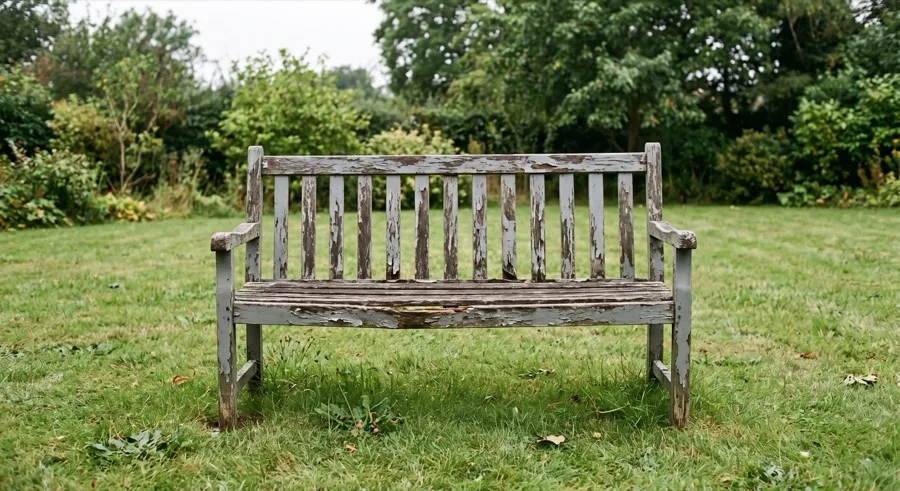
 Before
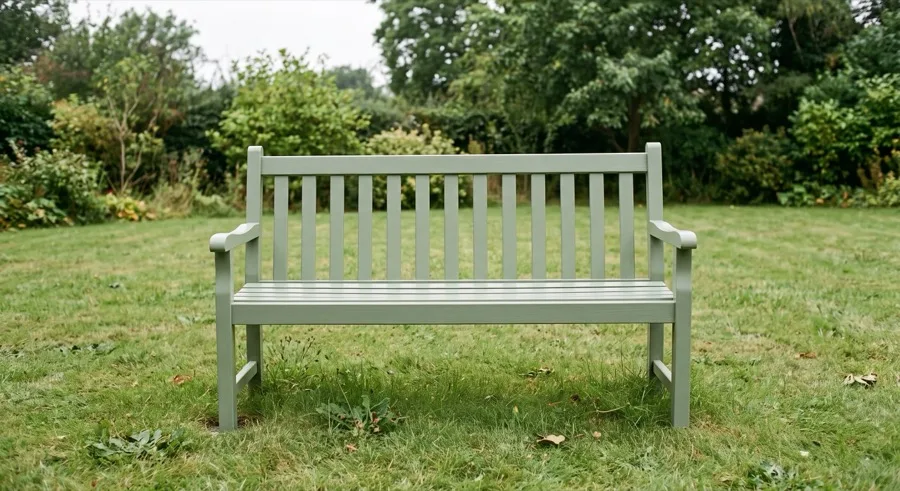 After
AfterPut Photos Side by Side
This photo merge layout creates one horizontal image with equal height, adjustable spacing, and optional Before / After labels. It is useful for progress images and product options.
Merge photos online in a row, a column, a grid or an overlay. The free editor processes your images on this device, with no signup and no watermark.
or paste Ctrl/⌘ V, choose files, or take a photo
Your photos are processed in your browser. Nothing is uploaded.
Private export. No upload, no account, no watermark.
Batch before & after
Drop up to 40 photos. PhotoMerge pairs them by file name, gives every pair the same size, labels, background and logo, then exports the set as one ZIP — ready for a portfolio, a client or a product listing.
Use this free photo merge tool to combine images right in the browser. Add files, pick a layout, and download the merged image — there is no upload, no signup, and no watermark. Because everything runs locally on your device, it is fast, private, and works even on a slow connection once the page has loaded.
PhotoMerge.app is built for everyday image tasks that should not require a heavy editor. The photo merge workflow covers side-by-side comparisons, long screenshot stitches, tidy photo grids, and simple overlay blends. The controls stay simple: choose spacing, background, labels, export format, and maximum width before saving the final file.
Four flexible photo merge layouts cover almost every way people want to combine images online. Start with the right layout, then fine-tune the merged image.
A good photo merge should make the result easier to read, compare, or share without hiding the original images.
Place two images side by side to show a before and after, compare edits, or review product choices. Labels add quick context.
Use vertical photo merge to combine screenshots from a chat, receipt, article, or app screen. Zero spacing creates a continuous stitch.
Create a photo grid for travel sets, recipe steps, listings, mood boards, and posts. Fixed columns keep mixed-size images neat.
Overlay two images to check alignment, preview a watermark, blend a texture, or compare transparent design work.
Each photo merge preset sets up the layout, spacing, and labels for a real task in one click — you can still fine-tune everything afterwards.
A horizontal comparison with equal height and Before / After labels. Great for fitness progress, renovations, and edits.
side-by-side presetVertical layout with zero spacing and equal width — chat threads and tutorials become one clean long screenshot.
vertical presetAuto columns and comfortable spacing for a tidy collage that is ready to post on social feeds or product pages.
grid presetBoth sides of a card on a clean white background with soft corners — processed entirely on your device, never uploaded.
private ID layoutEqual cells on a white background with optional Option A / Option B labels for listings and catalogs.
catalog presetTwo images blended at 50% opacity — a creative double-exposure style merge for mood boards, edits, and quick art references.
overlay presetThe photo merge process takes four quick steps. For simple side-by-side images or screenshot stitches, most people can finish in under ten seconds.
Drop files, paste a screenshot, choose from your library, or take a photo on your phone. Add more images later if needed.
The tool suggests one automatically — horizontal, vertical, grid, or overlay. Presets help with before and after images, ID cards, comparisons, and long screenshots.
Tune spacing, background, corners, and labels. Reorder or rotate photos, then set a maximum width for email, forms, or messaging apps.
Export the photo merge result as JPG, PNG, or WebP, or copy it to your clipboard. Use JPG for compact files, PNG for sharp text, and WebP when supported.
During each photo merge, your images are processed locally in your browser. They are never uploaded, stored, or analyzed, which helps keep documents, screenshots, and work images on your device.
The photo merge preview updates in real time, with no queues and no processing servers.
Exports are clean, full quality, and completely free. No branding is ever added to your image.
Big touch targets and a bottom control bar make editing easy on iPhone and Android.
Merged images keep the original resolution when possible, with JPG, PNG, and WebP output plus a quality slider. You can also cap the width for smaller shared files.
Use the photo merge tool to combine images in a horizontal, vertical, grid, or overlay layout, then download the merged image. Everything happens in your browser, so your photos are not uploaded.
Upload two photos and choose the Side by Side layout. You can make both photos the same height, adjust spacing, add labels, and download the final image as JPG, PNG, or WebP.
Yes. Use the Vertical layout or the Stitch Screenshots preset. It sets spacing to zero and stacks your screenshots into one long image.
No. Your photos are processed locally in your browser. They are not uploaded to a server, stored, or shared with third parties.
No. Every photo merge export is clean, with no watermark.
You can add JPG, PNG, WebP, and supported browser image formats. You can export the merged image as JPG, PNG, or WebP.
Yes. It works in modern mobile browsers. You can choose images from your library and download the photo merge result.
In this photo merge tool, these words all mean creating one image from multiple inputs. A horizontal merge places photos next to each other, vertical stitch stacks them, grid creates a collage, and overlay blends images on top of each other.
The tool keeps the original pixels when possible and lets you export at the original size. JPG exports include a quality slider, while PNG and WebP are useful when you need crisp text, transparency, or a smaller file.
Yes. Use equal height for side-by-side layouts, equal width for vertical layouts, or the Fit option in a grid. The Fill option is available when you prefer matching cells and do not mind cropping edges.
Yes. The ID Front & Back preset places two images on a clean background, and processing stays in your browser. Always check the final file requirements for the service where you plan to submit the image.
The same private editor, opened with the layout and spacing for one job already set.