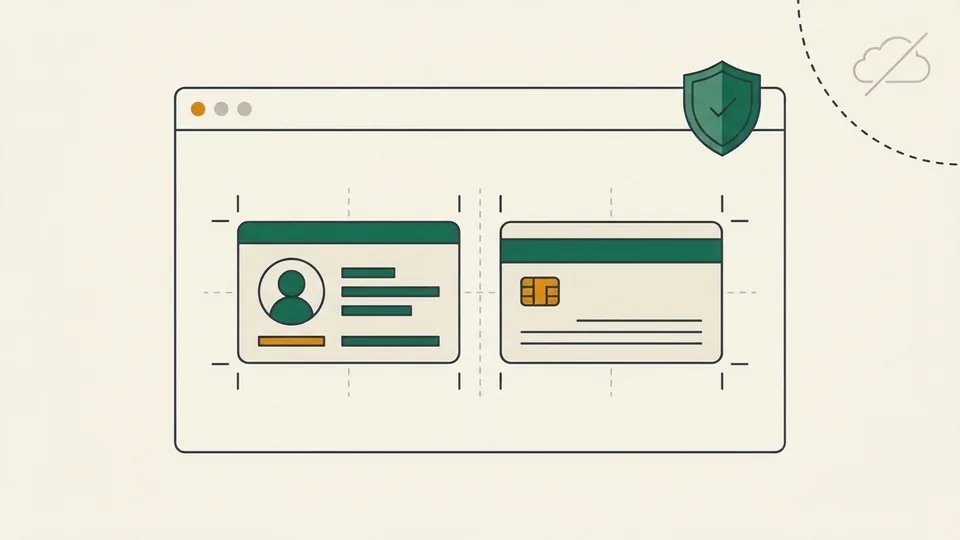
Put both sides of an ID card, driver's license, insurance card, or passport on one clean white canvas — rendered locally in your browser so your document never touches a server.
Local processing
JPG, PNG & WebP
Works on phone
Updated
Drop photos here
or paste Ctrl/⌘ V, choose files, or take a photo
Your photos are processed in your browser. Nothing is uploaded.
Presets
Photos
Preparing your image…
Layout
Adjust
50%
100%
50%
50%
0°
16px
16px
0
Labels
Export
92
Output: —
One-time payment, no automatic renewal. Pro also removes ads and unlocks batch ZIP exports.
Private export. No upload, no account, no watermark.
To combine ID card front and back into one image safely, add both photos to the editor above, keep the default Side by Side or Vertical layout on a white background, and download one JPG or PNG — with zero server upload, no watermark, and no signup. Every pixel is decoded and drawn locally inside your browser using the HTML5 Canvas API.
Most rental portals, banks, insurance carriers, and travel agencies still give you a single file-upload box when they ask for both sides of a government ID, driver's license, or health card. Merging the front and back into one tidy image solves the upload form problem in seconds, but uploading a photo of your passport or national ID to a random cloud converter is an unnecessary privacy risk.
PhotoMerge.app is built specifically for sensitive documents like these. Once this page finishes loading, all image decoding, resizing, white-margin padding, and file encoding run strictly inside your phone or laptop memory. Nothing is sent over the network, nothing is logged on a remote server, and no account or watermark stands between you and a clean export.
Front and back ID images combine directly inside your local browser viewport — no remote upload, no cloud storage, and no account.
How to verify that your ID or passport is never uploaded
Plenty of websites claim "private" or "secure" while still uploading your files to a cloud bucket and promising to delete them an hour later. With a true client-side tool, you do not have to take a privacy policy on faith — you can verify zero upload yourself in under ten seconds before adding a real document.
Test with Airplane Mode (easiest on phones). Load this page in Safari on iPhone or Chrome on Android, turn on Airplane Mode or disconnect Wi-Fi, then add two photos and click Download. Because the entire merge engine already lives in browser memory, combining ID card front and back still works completely offline.
Check browser DevTools Network tab (easiest on desktop). Press F12 (or ⌘+Option+I on Mac), open the Network tab, clear the log, and drop both ID photos into the editor. You will see zero outgoing POST requests and zero image bytes leave your machine.
Inspect local EXIF & GPS data before sharing. Phone photos often carry GPS coordinates and camera timestamps. When PhotoMerge draws your front and back images onto a fresh HTML5 Canvas and exports a new JPG or PNG, standard camera EXIF metadata is stripped automatically — and for standalone documents you can also run our Remove Photo Metadata tool.
Close the tab when finished. Because images are held only in temporary browser memory for the active session, closing the tab immediately clears the working canvas.
Client-side HTML5 Canvas keeps sensitive ID and passport pixels strictly inside device RAM, eliminating server transfer and retention risks.
Formatting requirements for banks, KYC, landlords, and visa portals
Different verification portals reject combined ID images for predictable reasons: a file that exceeds a 2 MB or 5 MB upload ceiling, a dark background that confuses automated OCR readers, or a side-by-side image that shrinks small text on the back of a license. Use the table below to pick the exact layout, width, and format before you export.
Recommended settings to combine ID card front and back by portal type
Submission portal
Recommended layout
Format & size target
Practical tips
Bank / fintech KYC form
Side by Side or Vertical
JPG (85–90% quality), 1,600 px max width
Keep white background and at least 20 px outer border so automated edge detection finds both sides.
Rental application / landlord
Vertical stack (top & bottom)
JPG or PDF, under 2 MB
Vertical stacks print cleanly on a single US Letter or A4 sheet without shrinking text.
Health / auto insurance card
Side by Side (equal height)
JPG or PNG, 1,200–1,600 px wide
Use PNG if the back contains tiny policy numbers or QR/barcodes that blur under heavy JPEG compression.
Visa / government portal
Check portal rules first
JPG or single-page PDF
If the portal specifies PDF instead of JPG, export here or combine both sides directly with Images to PDF.
Passport bio page + visa page
Vertical stack
JPG (90% quality) or PNG
Avoid rounding corners too aggressively; set Corners to 0–4 px so the machine-readable zone (MRZ) stays fully visible.
General formatting guidelines compiled November 25, 2026 based on common web upload limits. Always follow any explicit pixel, DPI, or file-size rule published by your receiving institution.
By default, this page opens with Side by Side layout, 24 px spacing between the front and back cards, a 28 px white outer border, and equal-height scaling so neither card is cropped. If your portal prefers a stacked portrait sheet — which is often easier to read on mobile reviewers' screens and prints naturally onto A4 or Letter paper — switch the layout toggle to Vertical with one click.
How to shoot clean, legible front and back ID photos before merging
Even the best layout cannot rescue a blurry or glare-washed photo. Automated identity checks fail far more often because of overhead lamp reflections than because of file resolution. Taking thirty seconds to capture clean source photos avoids a rejected application.
Turn off flash and shoot in indirect daylight. Glossy laminated cards reflect camera flash directly over your name, license number, or hologram. Place the card on a flat, dark matte surface near a window instead.
Shoot straight down, not at an angle. Tilting the phone turns rectangles into trapezoids and distorts the bottom MRZ text on passports. Hold the lens parallel to the table.
Crop tight to the card edges before or after shooting. Removing excess desk or tablecloth space ensures both cards fill the combined canvas at maximum legibility.
Match orientation before export. If one side came out sideways from your phone camera, use the rotate button on its thumbnail right inside the editor before downloading.
Keep the free 1,600 px export cap in mind. Free exports up to 1,600 px on the long edge are unlimited and already sharper than most 150–200 DPI web verification portals require. If an institution demands an original full-resolution scan above 1,600 px, every user also gets 1 free full-size export per day (or unlimited with PhotoMerge Pro).
When to use PDF or built-in offline alternatives instead
Combining ID card front and back into a single JPG or PNG is ideal for image-only upload boxes, email attachments, and messaging apps. However, some portals strictly require a PDF file or a multi-page document. In that case, use our local Images to PDF converter, which also runs 100% in your browser with zero server upload.
If you prefer not to use any web browser at all, you also have built-in offline options on your device: on macOS, you can open both images in Preview or place them onto one page in Pages and export as PDF; on Windows, you can paste both photos into Microsoft Word or Paint; and on iPhone, you can use the built-in Apple Shortcuts "Combine Images" action. The reason people still reach for PhotoMerge.app is speed and visual control — you get live equal-height alignment, crisp white margins, rounded-corner control, and instant JPG/PNG/WebP sizing without wrestling with document margins.
Combine ID card front and back — questions
Is it safe to combine photos of my passport or ID card on PhotoMerge.app?
Yes. PhotoMerge.app processes images 100% locally in your browser using the HTML5 Canvas API. Your ID card or passport photos are never uploaded to a server, stored in a database, or shared with third parties. You can even disconnect from the internet after loading the page and complete the merge offline.
Should I place my ID front and back side by side or vertically stacked?
Both work well. Side by Side fits wide horizontal upload previews cleanly, while Vertical stacking (front on top, back underneath) matches standard portrait A4/Letter pages and keeps small back-of-card text larger on mobile screens. Switch between them in one click above.
Will merging my ID photos reduce text sharpness or blur barcodes?
No, provided you export at a suitable width and format. For most KYC and rental portals, 1,600 px wide JPG at 90% quality keeps all text sharp while staying under 1 MB. If the back of your card has dense micro-text or a PDF417 barcode, choose PNG for lossless text clarity.
How do I combine ID card front and back into a PDF instead of JPG?
If a bank, embassy, or HR portal specifically requires a PDF file, open our client-side Images to PDF tool at /images-to-pdf/. It packages your front and back images into a single PDF locally in your browser without uploading them.
Does PhotoMerge.app add a watermark or require an account?
Never. Every export — free or Pro — is completely clean with no watermark, no logo, and no signup wall.
Can I combine iPhone HEIC photos of my ID card directly?
Yes. Modern Safari on iPhone and macOS decodes HEIC natively when you pick images from your Photo Library. If you are on a Windows PC with raw .heic files, convert them locally first with our HEIC to JPG tool.