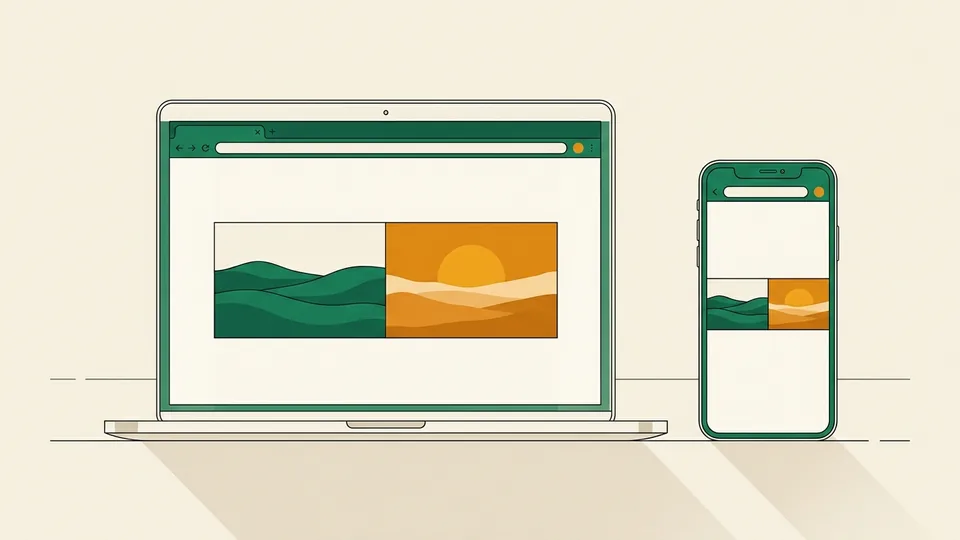
Merge photos right inside iPhone Safari, Android Chrome, or any Mac and Windows browser — no App Store download, no signup, no watermark, and no cloud upload.
Local processing
JPG, PNG & WebP
Works on phone
Updated
Drop photos here
or paste Ctrl/⌘ V, choose files, or take a photo
Your photos are processed in your browser. Nothing is uploaded.
Presets
Photos
Preparing your image…
Layout
Adjust
50%
100%
50%
50%
0°
16px
16px
0
Labels
Export
92
Output: —
One-time payment, no automatic renewal. Pro also removes ads and unlocks batch ZIP exports.
Private export. No upload, no account, no watermark.
To combine photos on iPhone and Android without downloading an app, open this page in Safari (iPhone) or Chrome (Android), tap Add Photos to select pictures from your library, choose Side by Side, Vertical, or Grid, and tap Download. Everything runs locally in your mobile or desktop browser with no account, no watermark, and zero server uploads.
Most mobile collage apps ask for a 150 MB download, push a weekly subscription popup before letting you export, or stamp a corner watermark on free saves. For everyday tasks — putting two outfit photos side by side, stitching a long chat screenshot on Android, or merging two JPGs on a Mac or Windows laptop — a modern web browser already has the full graphics engine needed to combine images locally in seconds.
Because PhotoMerge.app renders directly on your device's HTML5 Canvas, the exact same private workspace works across iPhone Safari, Android Chrome, iPadOS, macOS, and Windows without installing software or sending personal photos to a remote server.
One consistent browser workspace across iPhone Safari, Android Chrome, Mac, and Windows — zero app downloads and zero cloud uploads.
Step-by-step: how to combine photos on iPhone and Android (plus Mac & Windows)
Each operating system handles file picking and saving slightly differently in the browser. Use the platform table below to combine photos on iPhone and Android, or merge JPG files on a desktop browser, and see exactly where your finished image lands.
How to combine photos in the browser on every major device
Device & browser
How to add photos
How to save the merged file
Good to know
iPhone / iPad (Safari)
Tap Add Photos → Photo Library, tap 2+ images, then tap Add.
Tap Download → tap the blue download arrow in Safari's address bar → Downloads → Share icon → Save Image.
Safari automatically converts iPhone HEIC photos to standard pixels when loading into the editor.
Android (Chrome / Edge)
Tap Add Photos → choose from Gallery, Photos, or Files (long-press to multi-select).
Tap Download; the combined JPG, PNG, or WebP saves directly into your Downloads folder and appears in Gallery.
Use Chrome's desktop-free bottom toolbar for one-thumb layout and spacing adjustments.
Mac (Safari / Chrome)
Drag files from Finder, click Add Photos, or copy any image and press ⌘+V.
Click Download (saves to Downloads) or Copy to paste straight into Mail, Slack, or Notes.
Works with screenshots captured via ⌘+Shift+4 without saving temporary files.
Windows (Chrome / Edge)
Drag JPG/PNG/WebP files from File Explorer, browse, or paste from Snipping Tool with Ctrl+V.
Click Download to save to your Downloads folder or Copy to clipboard.
Supports rapid reordering via drag-and-drop or keyboard arrow buttons.
Verified November 25, 2026 on iOS Safari, Android Chrome, macOS Safari/Chrome, and Windows Chrome/Edge.
Every platform runs the same local HTML5 Canvas pipeline — no native app installation or server round-trip required.
Browser photo merger vs built-in phone tools vs App Store apps
If you are deciding whether to use a browser tool, your phone's built-in features, or a dedicated mobile app, each approach makes clear trade-offs in speed, privacy, and layout control.
Comparing ways to combine photos on iPhone, Android, and desktop
Method
No app install
No watermark / subscription
Custom spacing, labels & vertical stitch
Local privacy (no upload)
PhotoMerge.app (Browser)
Yes
Yes (free, no signup)
Yes — Side by Side, Vertical, Grid, Overlay, labels, borders
Yes (100% client-side)
iOS Shortcuts ("Combine Images")
Built into iOS
Yes
Limited — requires building/editing a shortcut; no live preview or labels
Rich filters and stickers, but cluttered with ads and upsells
Varies by app
Cloud web editors (Canva / Fotor)
Yes (browser)
Account often required
Full design suite, slower for quick 2-photo merges
No (uploads to cloud)
Honest feature comparison as of November 25, 2026. Built-in tools like iOS Shortcuts are great for one-tap automation, while browser tools shine when you want instant visual control without installing an app.
For a quick two-photo comparison on an iPhone without touching Shortcuts, or a zero-gap vertical stitch of four WhatsApp screenshots on Android, opening PhotoMerge.app in your existing browser gives you live preview, non-cropping alignment, and clean JPG/PNG/WebP output in under fifteen seconds.
Troubleshooting when you combine photos on iPhone and Android
Mobile browsers are remarkably capable, but a few iOS and Android quirks trip people up the first time they export an image from a web app. Run through these quick fixes if anything behaves unexpectedly:
"Where did my downloaded photo go on iPhone?" Safari saves web downloads into the Files app under iCloud Drive → Downloads (or On My iPhone → Downloads), not directly into Apple Photos. Tap the small downward arrow in Safari's address bar, open the image, tap the Share button, and choose Save Image to move it into your Photos camera roll.
"My iPhone photo is in HEIC format." Safari automatically decodes HEIC photos when you choose them from your Photo Library. If you transferred raw .heic files to a Windows PC or an older Android phone that will not open them, convert them locally first with our HEIC to JPG converter.
"Two photos of different shapes look uneven." Make sure Equal height is selected for Side by Side layouts (or Equal width for Vertical stacks). That scales both images cleanly to match along the shared edge without slicing off heads or text.
"One screenshot arrived rotated." Tap the rotate icon on that thumbnail in the editor strip before exporting so the canvas recalculates cleanly.
"The file is too large for email or a web form." Switch format to JPG (85–90% quality) or set Max width to 1,200 px or 1,600 px — this shrinks a 6 MB dual-camera photo down to roughly 250–450 KB while keeping it crisp on phone screens.
Mobile memory limits and high-resolution export tips
Modern smartphones shoot 12-megapixel to 48-megapixel photos, which decompress into massive bitmaps in RAM. Apple Safari enforces a hard canvas pixel budget of roughly 16.7 million pixels (4,096 × 4,096) on iOS, while Chrome on Android supports larger canvases up to available device memory. Combining two 12 MP photos works effortlessly on every modern phone, but stacking ten full-resolution camera shots in one mobile tab can slow down older devices.
If you are combining more than four high-resolution photos on a phone, keep Max width at 1,600 px (which is unlimited on the free tier and looks sharp on Retina displays) or switch to a laptop when exporting poster-sized multi-photo grids. Every user also receives 1 free full-size export per day above 1,600 px, with unlimited full-size exports and 20-pair batch comparisons included in PhotoMerge Pro.
Combine photos on iPhone & Android — questions
How can I combine two photos on my iPhone using Safari without downloading an app?
Open PhotoMerge.app in Safari, tap Add Photos, choose Photo Library, select both pictures, pick Side by Side or Vertical, and tap Download. Then tap the download arrow in Safari's address bar and tap Share → Save Image to place it in your Photos app.
Does this work on Android Chrome without installing anything?
Yes. Open this page in Chrome, Samsung Internet, Firefox, or Edge on Android, pick photos from your Gallery, adjust spacing or layout, and tap Download. The combined image saves straight to your Downloads folder and appears in your Gallery.
Can I merge two JPG files on my Mac or Windows laptop directly in the browser?
Yes. Drag and drop your JPG files onto the editor above — or copy and paste them with Command+V (Mac) or Ctrl+V (Windows) — and download the merged JPG, PNG, or WebP immediately with no software install.
Are my personal phone photos uploaded to a server?
No. All image decoding and merging happen locally inside your phone or laptop browser via the HTML5 Canvas API. Your photos never leave your device.
Will combining photos on my phone crop the edges?
Not by default. Side by Side uses Equal height and Vertical uses Equal width, keeping 100% of each photo visible. In Grid mode, keep Fit selected to prevent edge cropping.
Can I stitch multiple long phone screenshots vertically?
Yes. Switch the layout to Vertical and set Spacing to 0 px — or open our dedicated Vertical Screenshot Stacker at /combine-images-vertically/ for a zero-gap preset.