Want AI to put two people into one realistic scene, stage a product with natural shadows, or craft an artistic double exposure? See real results, grab a tuned prompt, or choose local zero-upload merging when privacy comes first.
Cloud AI · Sister Tool
Blend two photos seamlessly with AI
Want to put two people into one realistic photo, drop a product into a sunlit scene, or match lighting and shadows automatically? Open our dedicated AI merge mini-tool on PixArmory.org.
Dedicated 2-slot mini-tool (no chat clutter)
5 one-click merge presets & 1K–4K output
30 welcome credits for new accounts (3 free 1K merges)
For ID cards, private screenshots, Before & After pairs, or transparent double-exposure overlays where your files must never leave your device, stay right here on PhotoMerge.app.
To merge two photos with AI into one seamless scene — such as putting two people into the same photograph or matching shadows on a product shot — use our sister cloud AI tool PixArmory AI Photo Merge. If you only need side-by-side layouts, vertical screenshot stacks, or transparent pixel overlays with zero server upload, use PhotoMerge.app’s local browser tools instead.
People searching for photo merge usually mean one of two very different jobs. The first is layout or pixel merging: joining two photos side by side, stacking long screenshots, or blending two layers with opacity sliders while keeping original pixels untouched. The second is AI semantic merging: asking a multimodal AI model to understand both images, remove mismatched backgrounds, relight faces or objects, and synthesize realistic contact shadows so two separate photos look like one camera exposure.
Because true AI photo merging requires heavy cloud GPU models that cannot run privately inside a browser tab, we keep PhotoMerge.app strictly 100% local and zero-upload, and host our dedicated AI Photo Merge mini-tool on our sister platform PixArmory.org. That way, you never have to guess whether your ID card or private screenshot is being sent to a remote AI server.
Real AI photo merge examples (Input A + Input B → AI Result)
Each showcase below combines two completely separate photographs into one unified frame with matched light direction, shadows, and lens depth of field. Click any preset button to open PixArmory with that exact workflow pre-selected.
Two People in One Photo
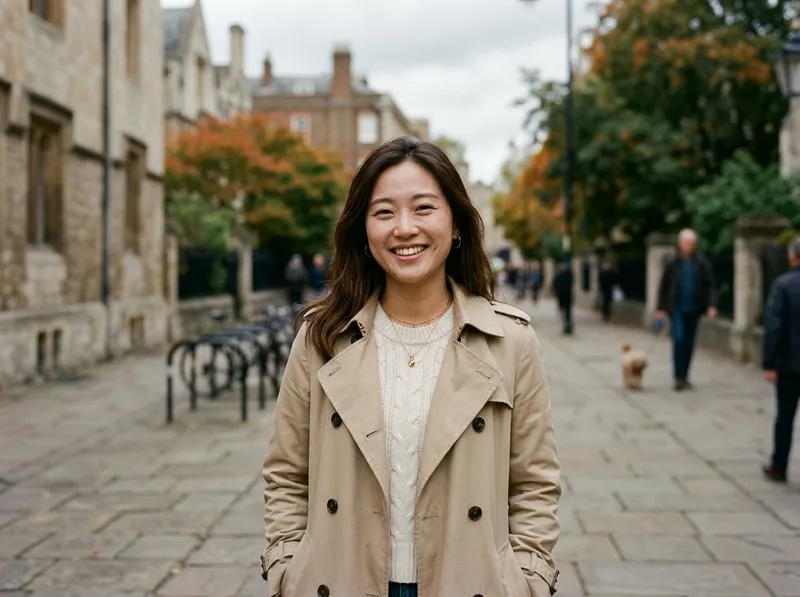
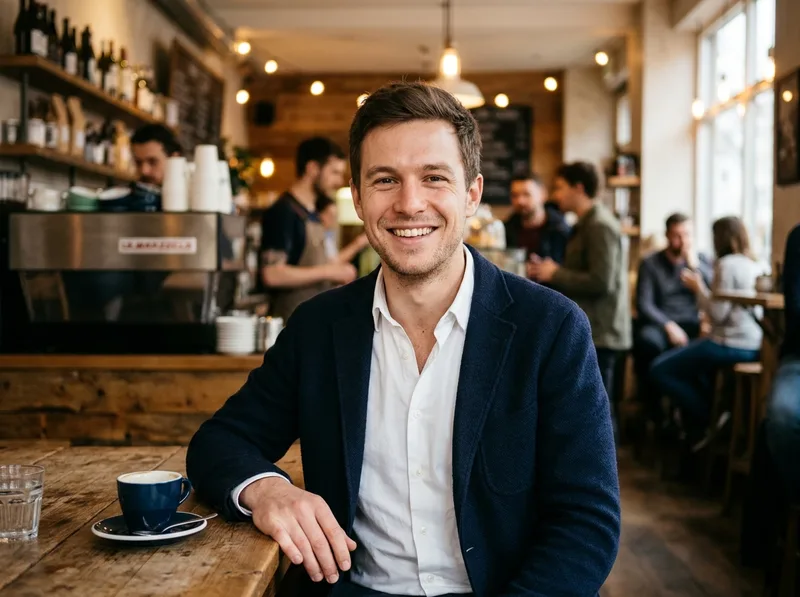
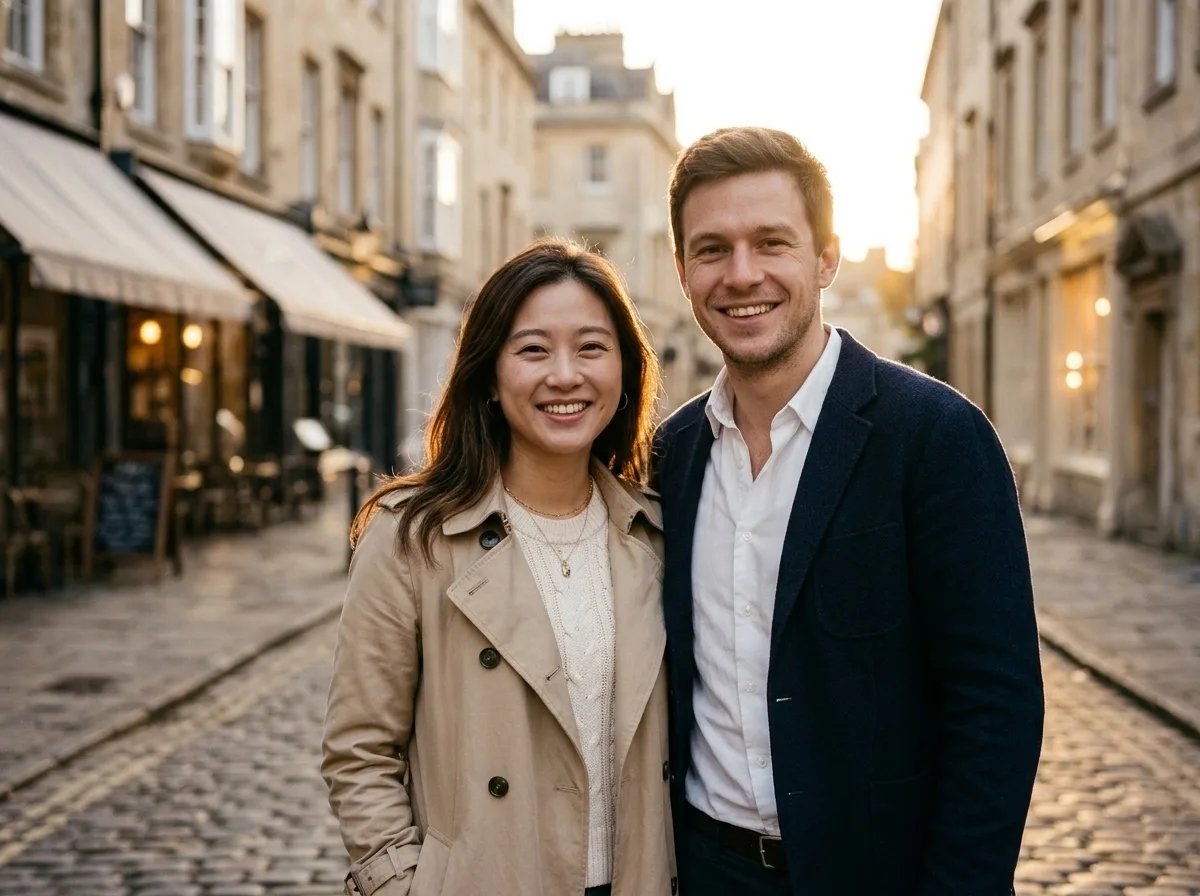
Combine two solo portraits into one golden-hour photo
Two separate portraits shot in mismatched lighting (an overcast sidewalk and an indoor café) blended into one natural cobblestone street photo with unified sunset lighting and depth of field.
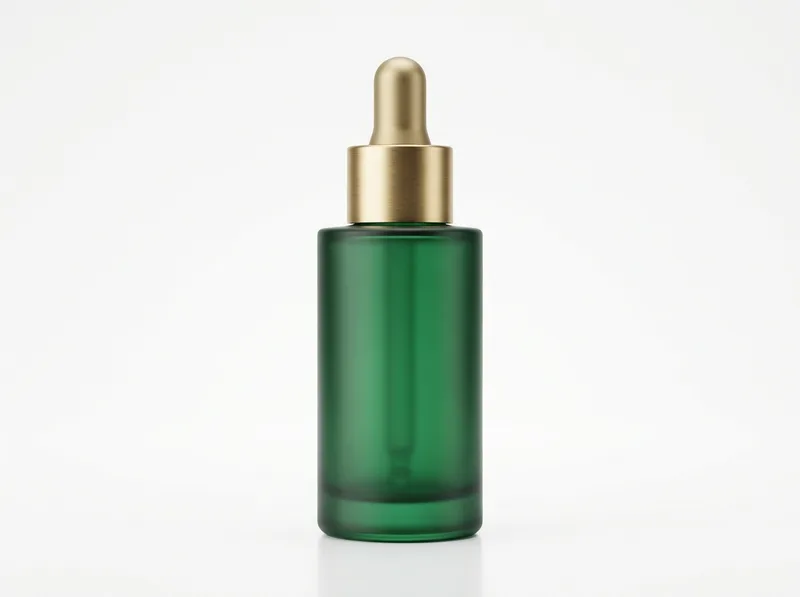
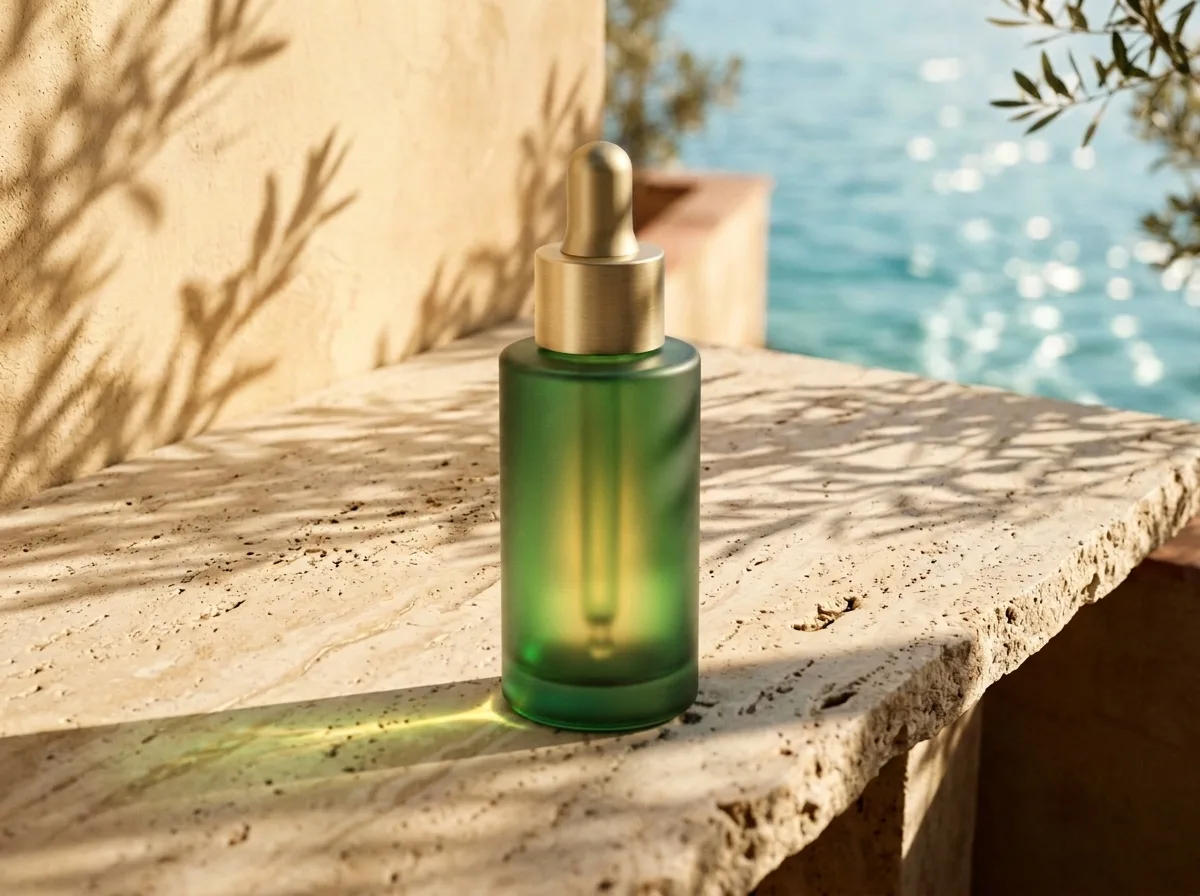
Drop a plain white-background product into a sunlit editorial scene
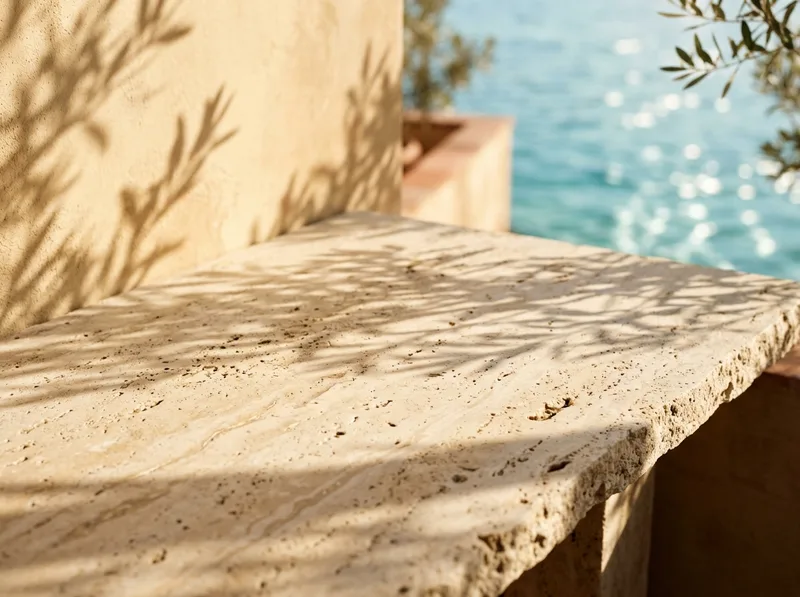
Skip the location shoot: merge a clean studio bottle packshot with a sunlit Mediterranean travertine stone vanity. AI renders realistic glass caustics, olive-leaf shadows, and natural surface reflections.
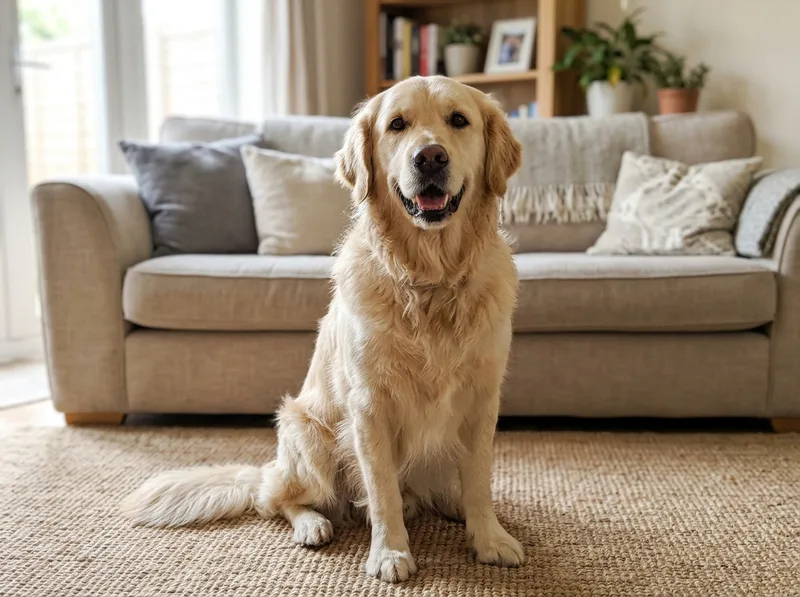
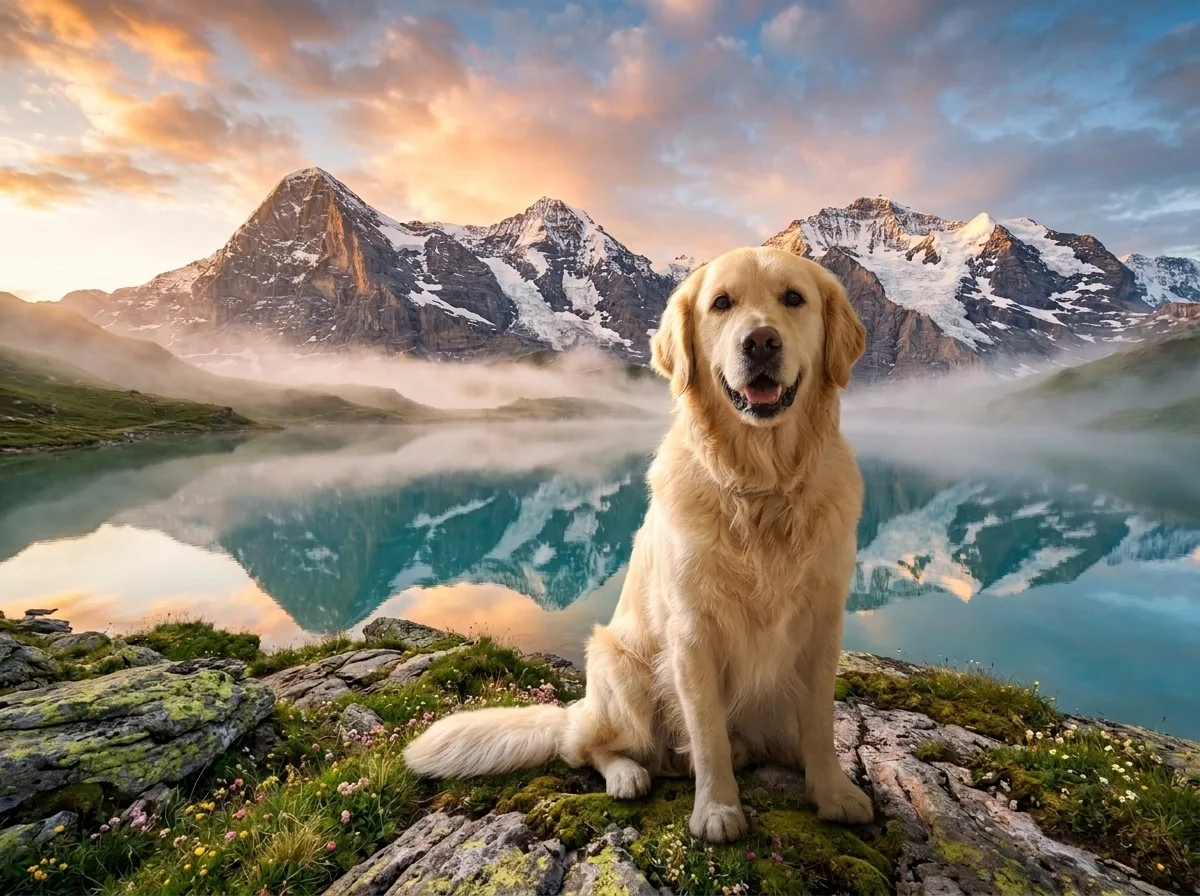
Move a living-room pet snapshot into a misty alpine sunrise
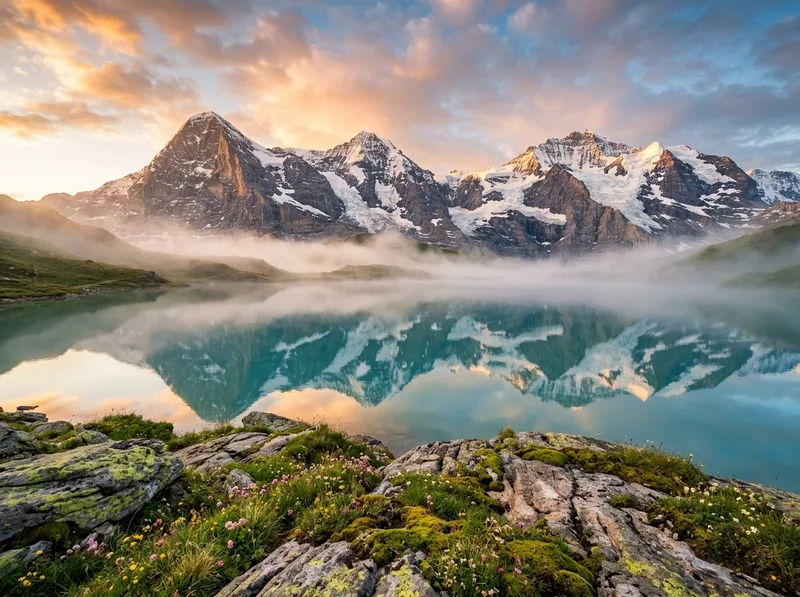
AI replaces indoor window light with warm sunrise rim light glowing through the golden retriever’s fur and grounds the paws naturally onto mossy shoreline rocks.
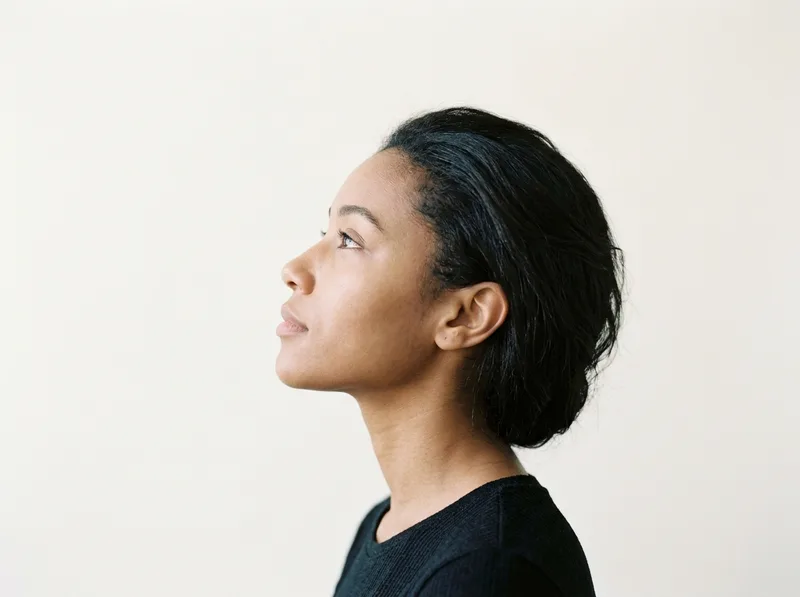
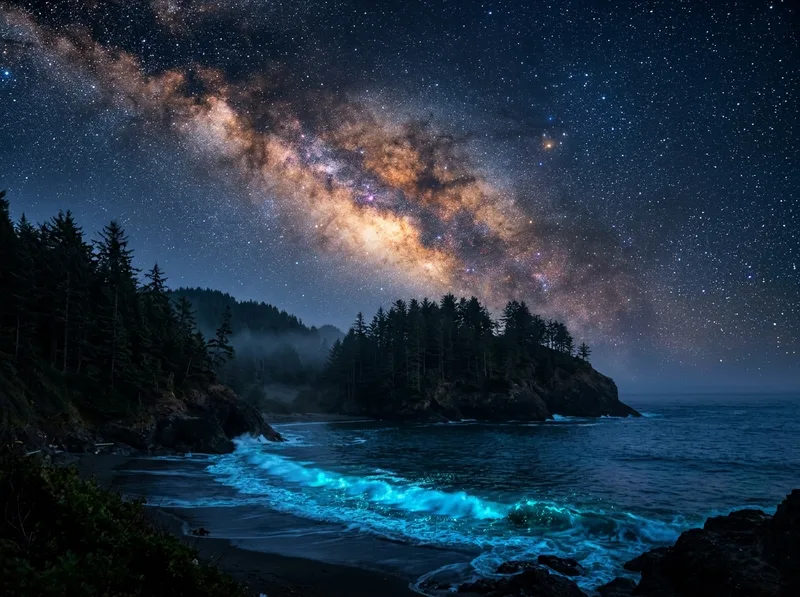
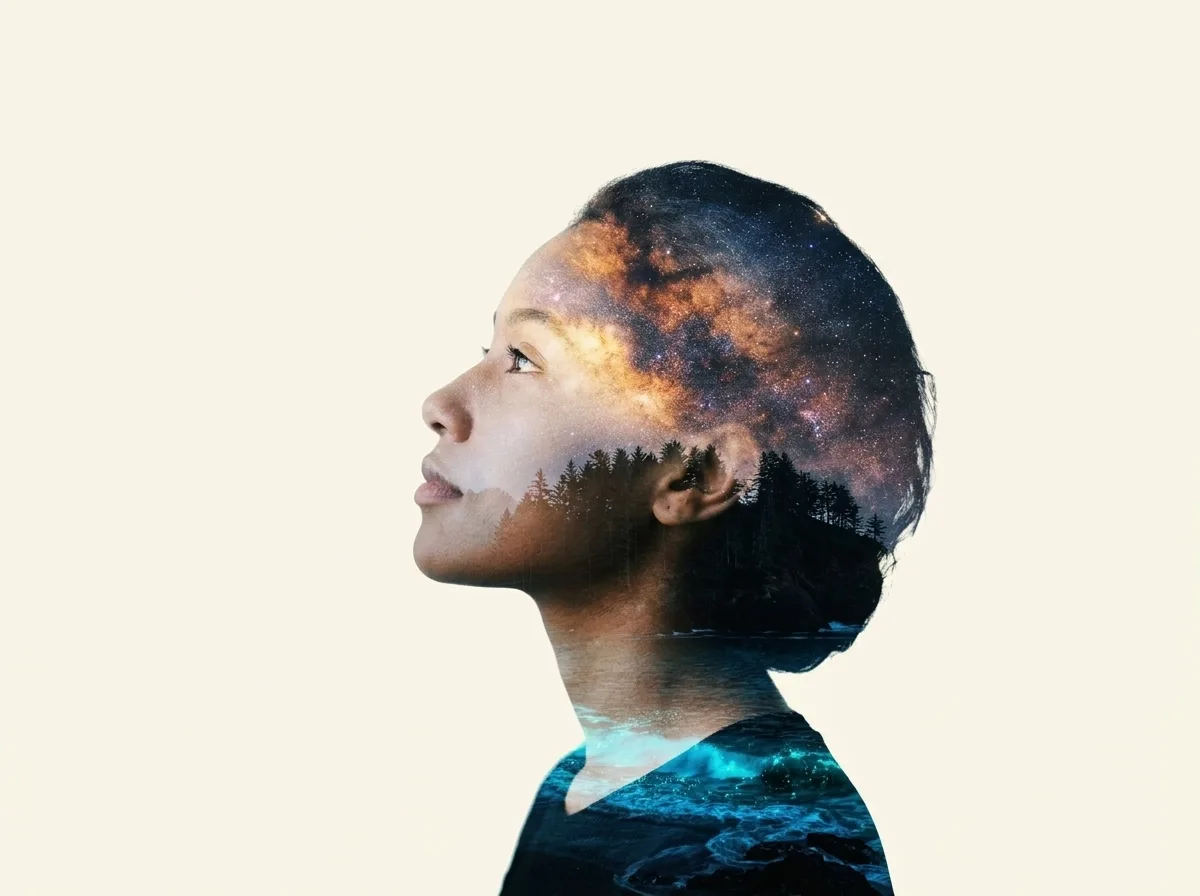
Fuse a side-profile portrait with a starry night forest
Where manual opacity sliders muddy facial edges, AI double exposure flows the Milky Way, evergreen pines, and glowing teal ocean wave cleanly inside the silhouette.
Ready-to-use AI photo merge prompts (click to launch)
Good AI composites describe three things: which subject comes from Photo 1, what comes from Photo 2, and one unifying light source. Copy any template below or launch it pre-filled directly in PixArmory’s AI Photo Merge tool.
Combine two people into one candid photo
Combine the person from Photo 1 and the person from Photo 2 into one natural candid photograph standing side by side smiling warmly in soft golden-hour outdoor light, keeping both faces and outfits faithful with matching shadows.
Place the exact product from Photo 1 naturally onto the surface in Photo 2 for a commercial campaign photo, adding realistic reflections, glass caustics, and soft contact shadows matching the scene light.
Seamlessly place the main subject from Photo 1 into the environment from Photo 2, matching perspective, directional sunlight, rim lighting, atmospheric haze, and natural ground contact shadows.
Create an editorial magazine-grade double exposure blending the portrait silhouette from Photo 1 with the landscape and colors from Photo 2 flowing seamlessly inside the subject contour on a clean off-white backdrop.
Keep the subject and framing from Photo 1 while seamlessly blending the color palette, golden lighting mood, and photographic atmosphere of Photo 2 into one cohesive natural image.
AI photo merge vs. local browser photo merge: 6-dimension comparison
Picking the right method upfront saves time and protects sensitive files. Here is an honest breakdown of when to launch PixArmory’s cloud AI merger versus staying on PhotoMerge.app’s local HTML5 Canvas tools:
PhotoMerge.app (Local) vs. PixArmory.org (Cloud AI Photo Merge)
Dimension
PhotoMerge.app (Local Canvas)
PixArmory.org (Cloud AI Merge)
How pixels are combined
Exact pixel placement, grids, panorama seams, or blend modes
Multimodal AI relighting, subject integration & shadow synthesis
Best use cases
ID front/back, Before & After pairs, long screenshots, collages, pixel overlays
Two people in one photo, e-commerce product staging, pet/travel scenes, artistic double exposure
Privacy & uploads
100% client-side — zero bytes leave your device (works offline)
Uploads source photos securely to cloud AI; originals auto-expire after 1 hour
Pixel fidelity
Original pixels preserved 1:1 (lossless PNG available)
Generates harmonized new pixels; fine micro-text can occasionally shift
Speed
Instant (< 1 second in browser)
10–25 seconds per AI generation (1K, 2K, or 4K)
Pricing
Free unlimited up to 1,600 px + 1 full-size/day ($4.99 30-day Pro)
Verified against PhotoMerge.app client-side architecture and PixArmory.org Nano Banana 2.1 credit pricing (November 2026).
Why we keep AI photo merge on a separate sister site
Many online photo editors quietly mix local utilities and cloud AI features under the same dropzone. For users merging a passport, driver’s license, medical receipt, or unreleased product prototype, that ambiguity is a real privacy hazard.
By keeping PhotoMerge.app 100% client-side and placing cloud-powered AI merging on PixArmory.org, the boundary stays crystal clear: anything you drop into PhotoMerge.app stays inside your device memory and passes an Airplane Mode test, while anything you send to PixArmory’s AI Photo Merge mini-tool explicitly shows a cloud badge and credit quote before uploading.
PixArmory’s /ai-photo-merge page is also built as a focused two-slot utility — not a complex chat agent — so you drop Photo A and Photo B, choose one of five presets, and download the result in under a minute.
Keeping local Canvas tools on PhotoMerge.app and cloud AI diffusion on PixArmory.org protects PhotoMerge’s strict zero-upload guarantee.
Four tips for believable AI photo merges
Whether you are combining two family portraits or placing a skincare bottle onto sunlit stone, four small habits dramatically improve your first-try success rate:
Match camera angle roughly. AI can easily fix mismatched lighting and backgrounds, but combining a top-down photo with an eye-level shot looks unnatural unless you explicitly ask the model to re-angle one subject.
Use sharp, unobstructed faces. When merging two people into one photo, avoid heavy sunglasses, motion blur, or harsh shadows across the face so the model preserves identity accurately.
Name one unifying light source. Phrases like “soft golden-hour sunlight from the left” or “diffused overcast daylight” tell the model how to harmonize skin tones and cast shadows consistently.
Start at 1K, then upscale or re-run at 2K/4K. Use 1K (10 credits) to test composition and prompt wording, then switch to 2K (13 credits) or 4K (26 credits) once the layout feels right.
AI photo merge — frequently asked questions
Can PhotoMerge.app merge two photos with AI without uploading them?
No. True semantic AI photo merging (relighting two people into one scene or generating natural shadows) requires large multimodal AI models that cannot run inside a browser tab. That is why we keep PhotoMerge.app 100% zero-upload for local merges and offer AI photo merging on our sister site PixArmory.org.
Is PixArmory AI Photo Merge free to try?
Yes. New PixArmory accounts receive 30 welcome credits automatically. Because a 1K AI photo merge costs 10 credits, you can run up to three complete AI merges for free before buying extra credits.
What is the difference between PhotoMerge Image Mix and AI Photo Merge?
PhotoMerge’s local Image Mix (/image-mix/) layers two images with opacity and CSS/Canvas blend modes (Multiply, Screen, Soft Light) without uploading or altering subject geometry. AI Photo Merge understands what is inside each photo, removes mismatched backgrounds, relights subjects, and blends them into one realistic scene.
Will my prompt and preset carry over when I click through to PixArmory?
Yes. Every showcase button and prompt card on this page opens PixArmory’s focused /ai-photo-merge mini-tool with the matching preset and prompt pre-filled, so you only need to drop your two photos.
Should I use AI photo merge for ID cards or official documents?
No. Never use generative AI on official ID cards, passports, or legal documents — AI synthesizes new pixels and uploads files to the cloud. Use PhotoMerge’s 100% local Combine ID Card Front and Back tool (/combine-id-card-front-and-back/) instead.
What if I just want two photos side by side or in a grid?
Use PhotoMerge.app’s main editor (/) or Side-by-Side Comparison tool (/merge-photos-side-by-side/). Both run locally in your browser with zero upload, no signup, and lossless PNG export.